Skip to content

Windows 10 & Windows 11

Brightness Control for Windows

An independent resource for Windows brightness control software. Find out how to adjust the brightness of laptop screens, desktop monitors and external displays, then pick the utility that gives you one slider for every screen.

Two separate applications. Both download directly from this site.

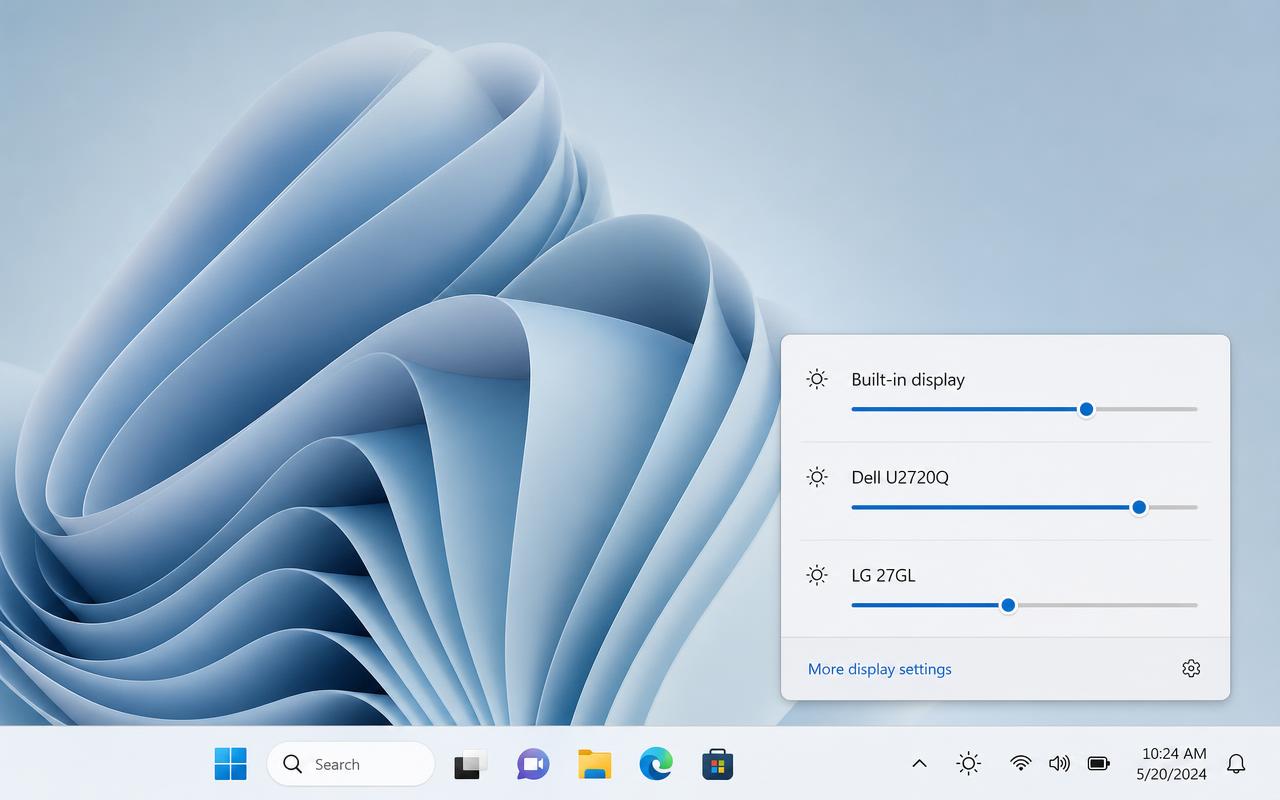
Windows desktop showing a brightness control panel with sliders for a laptop screen and two external monitors

Two Ways to Control Brightness on Windows

Both applications run on Windows and adjust display brightness. Download either one directly from this site.

Brightness app

Brightness Control

A Windows brightness control application with a simple slider interface for every connected display.

  • Brightness control for Windows displays
  • Simple, slider-based interface
  • Fast, direct download straight from this site
  • Suits managed or policy-restricted PCs
  • One-click install, clean uninstall

Independent application

Twinkle Tray

A separate application with per-monitor brightness sliders in the system tray.

  • Brightness slider for each detected display
  • External monitor control over DDC/CI where supported
  • Multiple-monitor support in one panel
  • Convenient system tray workflow
  • Free and open source

These are two separate applications. Both download directly from this site.

Brightness Control for Windows 11

Windows 11 keeps brightness in Quick Settings, the panel that opens from the taskbar icons. On a laptop the slider is right there; on a desktop PC it is usually absent because Windows has no interface for external displays. Adaptive features such as content adaptive brightness control can also change levels on their own, which is worth switching off if brightness seems to drift.

Full instructions are on brightness control for Windows 11, and the step-by-step version is in how to adjust brightness on Windows 11.

Brightness Control for Windows 10

Windows 10 offers more entry points: the Action Center slider, Settings, and the Mobility Center on laptops. They all control the internal panel, and none of them reach a monitor connected to a graphics card. Windows 10 machines are also more likely to be paired with older monitors, where DDC/CI is sometimes disabled by default in the on-screen menu.

See brightness control for Windows 10 and how to adjust brightness on Windows 10.

Monitor Brightness Control

Software-based monitor brightness control works by sending the same command the monitor's own menu uses, over the data channel in the video cable. The backlight really changes, so contrast is preserved and power draw drops. It is the practical way to manage a desktop screen without reaching for buttons under the bezel.

More detail on monitor brightness control and DDC/CI monitor control.

External Monitor Brightness

External monitors are separate devices, so Windows deliberately hides brightness controls for them. Utilities restore that control where the monitor supports DDC/CI and the connection passes it through. Adapters, KVM switches and some docks can block the channel, which is the usual reason a slider appears to do nothing.

Read external monitor brightness, multiple monitor brightness control, or the fix list in fix external monitor brightness on Windows.

Twinkle Tray

Twinkle Tray is a free, open-source Windows application that puts a brightness slider for each display in the system tray, including external monitors. It is an independent project with its own website, and it is not the same product as the Microsoft Store brightness control app.

Start with the Twinkle Tray overview, or go straight to Twinkle Tray download. Undecided? Read Twinkle Tray vs Brightness Control.

Frequently Asked Questions

Does Windows have a built-in brightness control for external monitors?

No. Windows shows a brightness slider only for displays it drives directly, which usually means a laptop panel. External monitors keep brightness in their own firmware, so you need the monitor's buttons or a utility that supports DDC/CI.

Which brightness control app should I install on Windows?

If you prefer software installed and updated through the Microsoft Store, use the Microsoft Store brightness control app. If you want per-monitor sliders in the system tray with keyboard shortcuts, look at Twinkle Tray. They are separate applications.

Can one app control brightness on several monitors?

Yes. Brightness utilities enumerate every connected display and give each one its own slider, so you can match levels across a multi-monitor desk in seconds.

Why is my monitor still too bright at its lowest setting?

Many panels bottom out above what is comfortable in a dark room. Lower contrast slightly and add software dimming, which darkens the image beyond the hardware minimum.

Is brightness control software safe?

Sending a brightness command is a normal, supported monitor function. Download the installer here and run it as you would any other Windows app.

Does brightness control work on both Windows 10 and Windows 11?

Both featured applications target current versions of Windows 10 and Windows 11. Only the surrounding Windows interface differs between versions.

Ready to control your brightness?

Compare both Windows applications on one page, with official download links and no re-hosted installers.